> For the complete documentation index, see [llms.txt](https://help.roolz.net/llms.txt). Markdown versions of documentation pages are available by appending `.md` to page URLs; this page is available as [Markdown](https://help.roolz.net/en/offers-editing-activity-and-statuses/files-in-the-offers.md).
# Files in the offers
Attaching files to the offers saves time and reduces the risk of misunderstandings between the bidders. Here we explain the benefits of this feature and how it works.
### What is it?
**Files in the offers** feature allow you to attach documents, photographs, diagrams and other materials directly to the offer. It is useful to ensure all transportation details are recorded precisely and to avoid unnecessary additional clarifications, delays and risks of misunderstanding between the bidders.
### What files can be attached?
You can attach up to 15 active files to your offer, each up to 35 MB in size.
The following formats are supported:
* Spreadsheets: CSV, TSV, XLSX, XLS, ODS
* Documents: PDF, DOC/DOCX, ODT, RTF, TXT
* Images: PNG, JPG/JPEG, TIFF, HEIC, SVG
* Presentations: PPT, PPTX
* Videos: MP4, MOV
* Archives: ZIP, RAR
{% hint style="info" %}
If there are more than two files, “Download archive (.zip)” button will appear.
{% endhint %}
### What are the benefits of this feature?
* Allows you to store all transportation files directly in the offer, without losing information in the chats and external sources;
* Makes file management transparent by displaying the added date and time as well as history changes;
* Reduces the risk of misunderstanding between bidders through unified and up-to-date data;
* Helps control the order and volume of attachments with clear limits and deletion rules;
* Ensures correct access to the files at different stages of the offer's life cycle, i.e. from publication to archiving;
* Saves time with built-in checks during uploads and the ability to manage files efficiently.
{% hint style="danger" %}
**Important!** If you create a duplicate offer, the files from the original offer are not transferred, i.e. they will not appear in the new offer. The same applies if you duplicate private offer to publish it on the public exchange: the files will not be copied to such duplicate. Similarly, when creating an offer template, files will not be transferred to the template.
{% endhint %}
{% hint style="danger" %}
**Important!** If an offer is linked to other offers (for example, if "Partner selection" feature is enabled) and you add or remove files from it, the link will be broken. The system will display a warning beforehand so you can understand the consequences and make a decision.
{% endhint %}
### Convenient and transparent work with files
* Files can be added, downloaded and deleted both when creating/editing an offer and directly when viewing it.
* Each file displays the date and time when it was attached (in your local time zone).
* If a file is deleted more than 10 minutes after upload, the offer will display "File was deleted" note with the date and time.
* Files deleted within the first 10 minutes disappear completely and will not be counted against the limits.
### File visibility and access
* In active offers, files are visible to all users that have access to the offer.
* In archived offers, files are only accessible to the offer owner (including the responsible party's colleagues) and the winning bidder.
* In archived offers, files can be added and deleted using full viewing mode.
{% hint style="info" %}
The offer owner, as well as the responsible person's colleagues, can download, add and delete files both in the offer creation and editing form, as well as when viewing it.
{% endhint %}
### How does files function work?
{% stepper %}
{% step %}
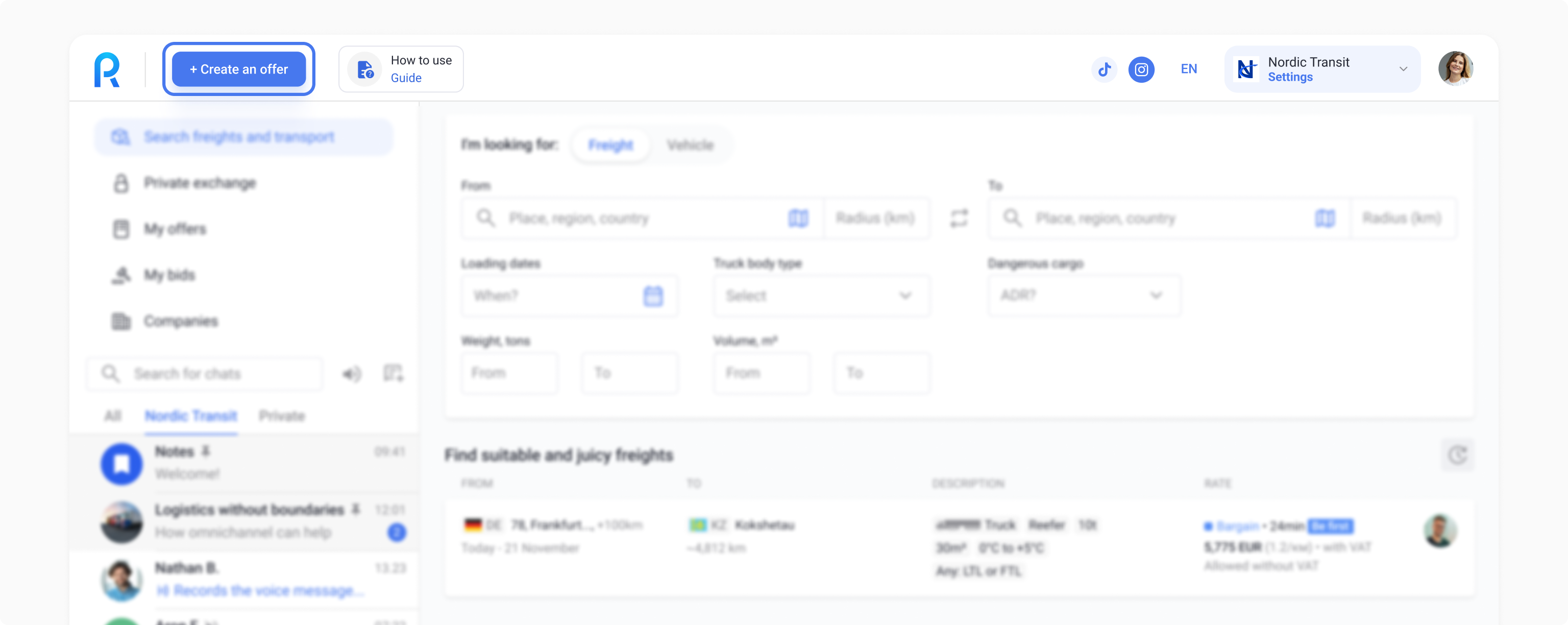
On the exchange, in the upper left corner click "Create an offer" button.
{% endstep %}
{% step %}
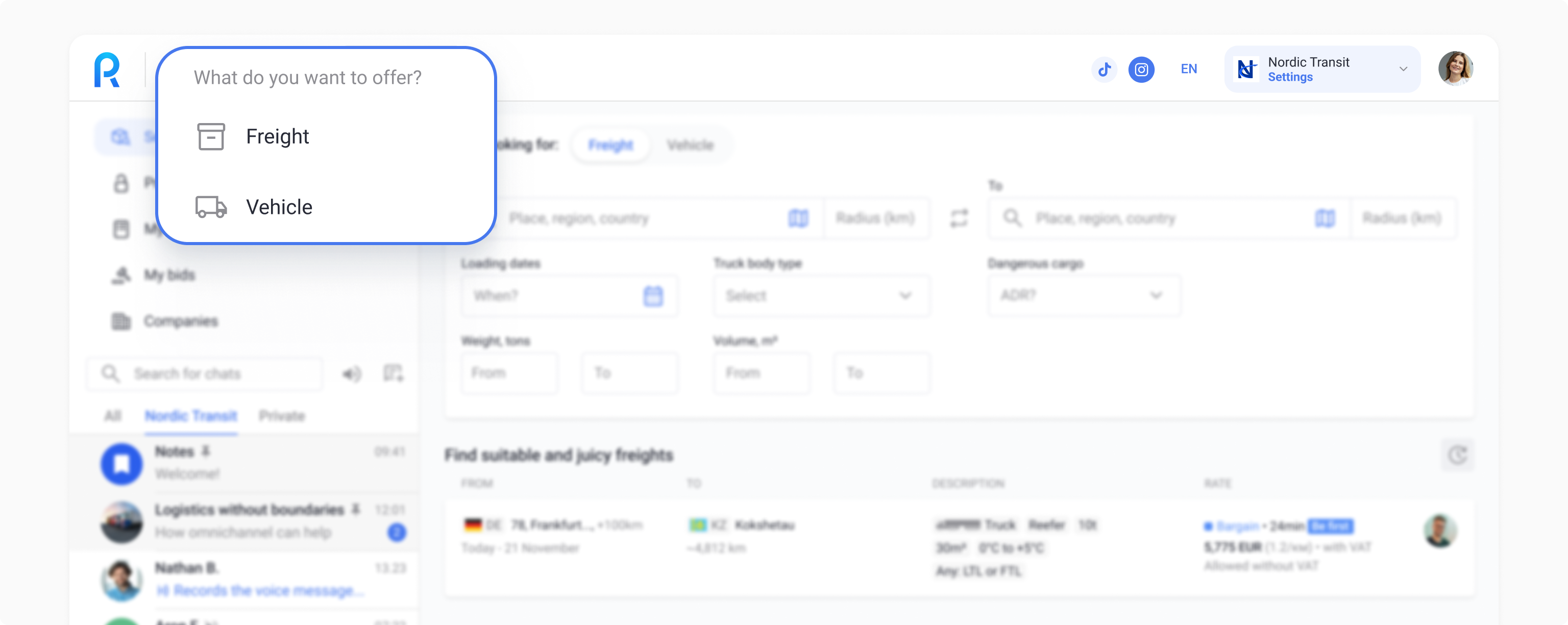
Select "Freight" or "Vehicle".
{% endstep %}
{% step %}
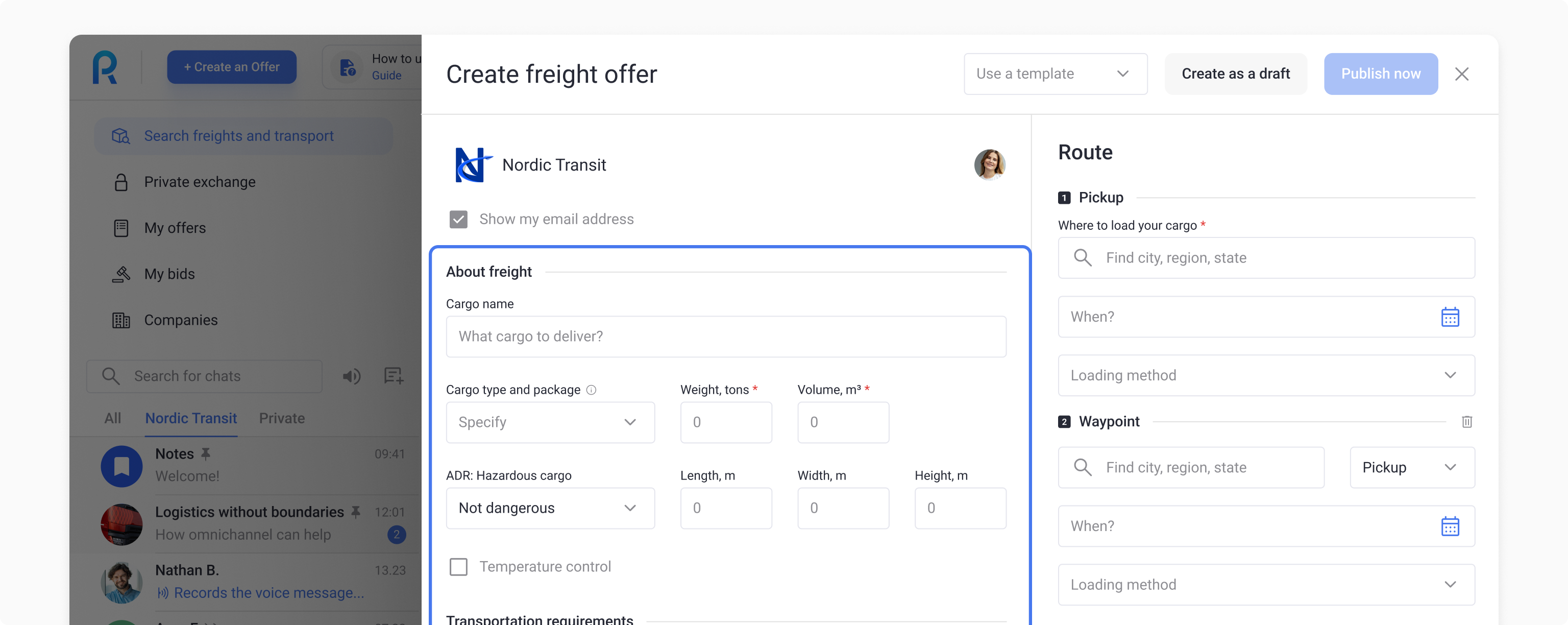
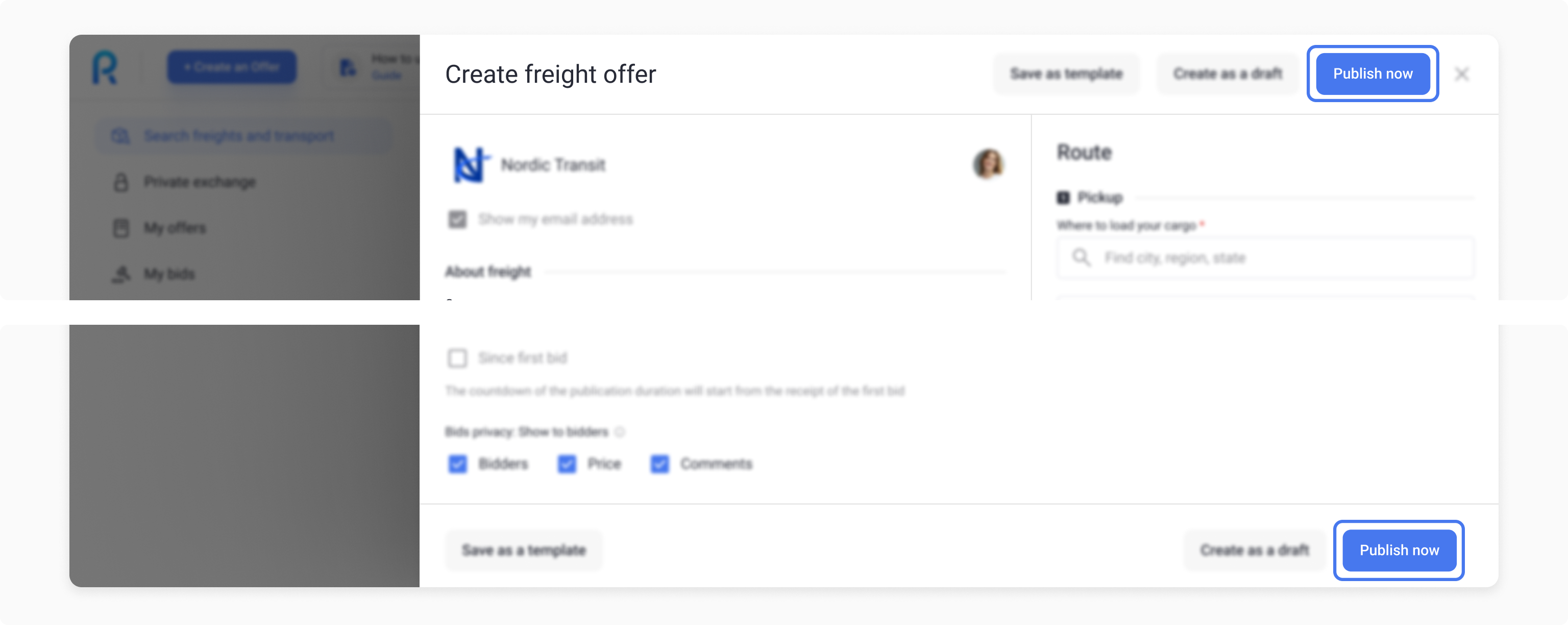
When the offer filling window opens, enter all required data regarding freight or transport.
{% endstep %}
{% step %}
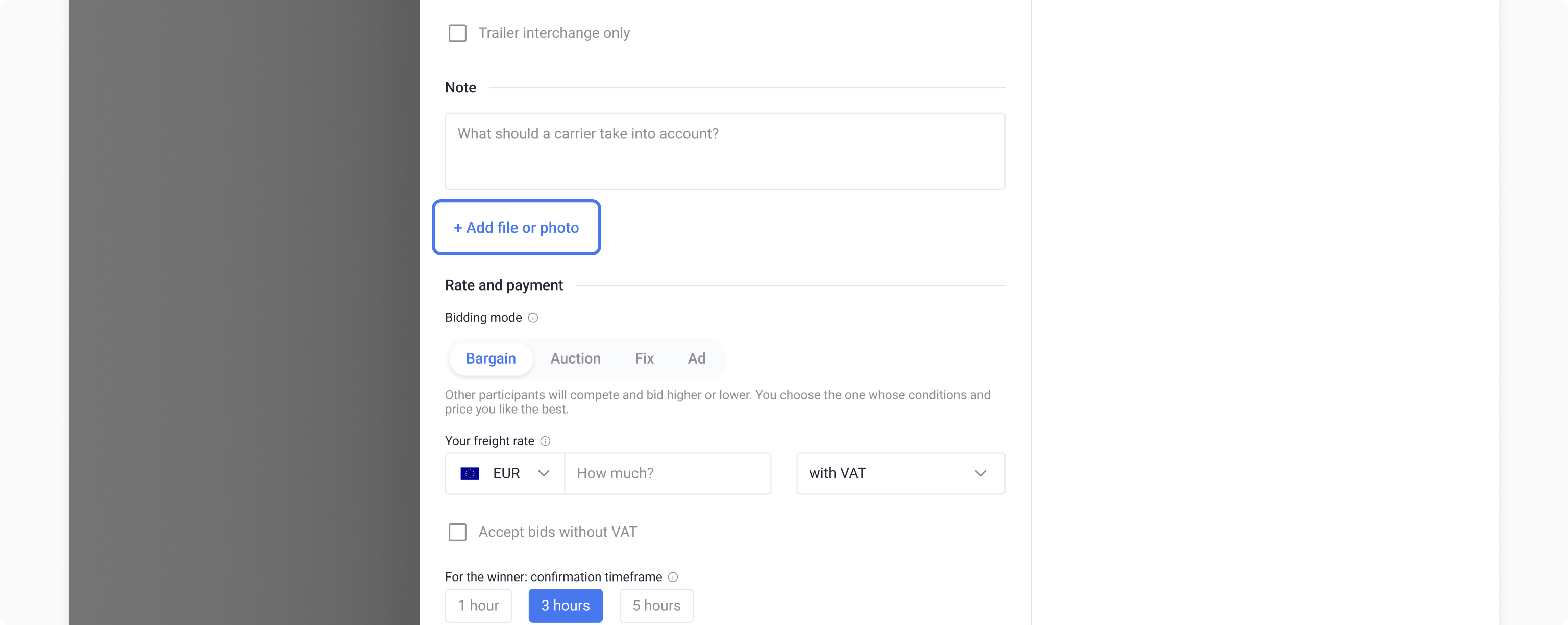
To attach file(s), click "Add file or photo" button and select the one(s) you need.
{% endstep %}
{% step %}
Publish your offer. Done!
{% endstep %}
{% endstepper %}
---
# Agent Instructions
This documentation is published with GitBook. GitBook is the documentation platform designed so that both humans and AI agents can read, navigate, and reason over technical content effectively. Learn more at gitbook.com.
## Querying This Documentation
If you need additional information that is not directly available in this page, you can query the documentation dynamically by asking a question.
Perform an HTTP GET request on the current page URL with the `ask` query parameter, and the optional `goal` query parameter:
```
GET https://help.roolz.net/en/offers-editing-activity-and-statuses/files-in-the-offers.md?ask=&goal=
```
`ask` is the immediate question: it should be specific, self-contained, and written in natural language.
`goal` is optional and describes the broader end goal you are ultimately trying to accomplish on behalf of the user. GitBook uses it to tailor the answer towards what is most useful for that goal.
The response will contain a direct answer to the question and relevant excerpts and sources from the documentation.
Use this mechanism when the answer is not explicitly present in the current page, you need clarification or additional context, or you want to retrieve related documentation sections.