> For the complete documentation index, see [llms.txt](https://help.roolz.net/llms.txt). Markdown versions of documentation pages are available by appending `.md` to page URLs; this page is available as [Markdown](https://help.roolz.net/en/contacts-and-people-search/how-to-view-users-contact-information-in-an-offer.md).
# How to view user's contact information in an offer?
To do this:
{% stepper %}
{% step %}
Go to the offer you are interested in;
{% hint style="danger" %}
**Important!** If company profile does not contain any contact information, the contact section will be displayed without restrictions.
{% endhint %}
{% endstep %}
{% step %}
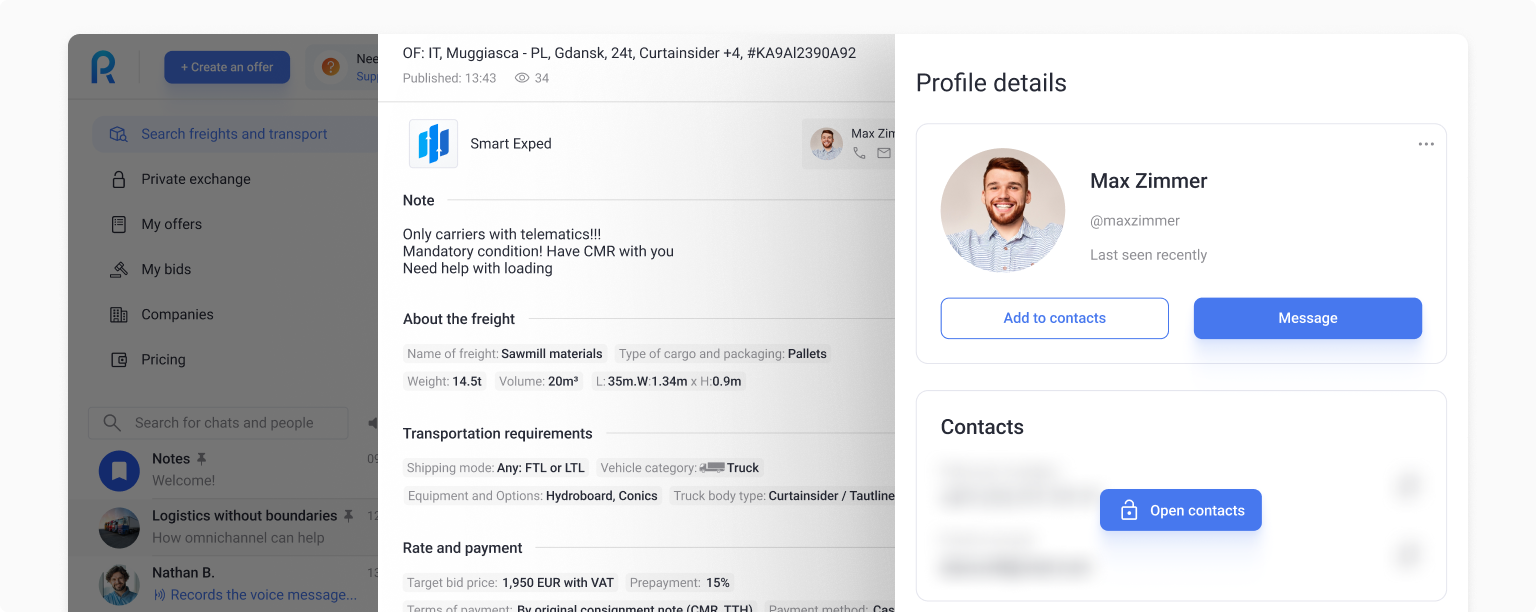
Viewing company and its contacts is only possible after the user has explicitly taken action in the open offer — by clicking "View contact info" button.
Once opened:
* company information is displayed,
* the person responsible for the offer becomes visible,
* communicating is available via the platform's built-in messenger, also call and email buttons are displayed (without revealing the user's contact information);
{% endstep %}
{% step %}
When you open the responsible person's profile ("Profile details" section), contact information remains hidden; disclosure of contacts is possible only after activating the corresponding tariff plan.
{% endstep %}
{% endstepper %}
### Limits on viewing contacts in the offers
If you are company's owner or administrator, you can view the available number of company views in the offers by clicking "Settings" → "Plan and billing" in the dashboard.
* For company's owner or administrator:\
click "Settings" → "Plan and billing" section → "Viewing offers and participating in bidding" block.
* For a company representative:\
click "My plan" in the dashboard → "Viewing offers and participating in bidding" block.
Each opened contact counts towards the monthly limit of the selected plan.
{% hint style="danger" %}
**Important!** The limit applies to the entire company and is used by all employees. View counters are separate:
* offer views and bid participation are counted separately,
* company and user contact views are counted separately.
{% endhint %}
### What happens when the limit is reached?
If the view limit is reached:
* a notification will appear indicating the limit has been reached;
* to continue, you will need to upgrade to a higher plan or wait for a new month;
* if you are not company's owner or administrator, the system will prompt you to contact your company administrator.
{% hint style="danger" %}
**Important!** Opening contacts does not automatically make them visible in other sections (for example, company profile).
{% endhint %}
---
# Agent Instructions
This documentation is published with GitBook. GitBook is the documentation platform designed so that both humans and AI agents can read, navigate, and reason over technical content effectively. Learn more at gitbook.com.
## Querying This Documentation
If you need additional information that is not directly available in this page, you can query the documentation by asking a question.
Perform an HTTP GET request on the following URL with the `ask` and `goal` query parameters:
```
GET https://help.roolz.net/en/contacts-and-people-search/how-to-view-users-contact-information-in-an-offer.md?ask=&goal=
```
`ask` is the immediate question: it should be specific, self-contained, and written in natural language.
`goal` is what the user is ultimately trying to achieve, the reason they need the answer. Sharing it helps GitBook give you a better, more relevant answer. A goal is most helpful when it describes the outcome the user wants rather than restating the question. For example, with `ask=how do I create an API token`, a goal like `automate deployments from our CI pipeline` lets GitBook tailor the answer to that use case.
The response will contain a direct answer to the question and relevant excerpts and sources from the documentation.
Use this mechanism when the answer is not explicitly present in the current page, you need clarification or additional context, or you want to retrieve related documentation sections.